
Configuring Entra ID Cloud Kerberos for macOS
In this article, I walk you through how to configure Entra ID Cloud Kerberos policies for macOS.

I've been playing around with Azure File Shares recently. Mostly for work purposes, but also for play... In my own tenant, I predominantly use SharePoint and OneDrive for all our storage needs, but as I've been toying around with Azure Files in my work tenant, I thought to myself "how easily would this slot into my personal tenant?".
The answer? Very easily.
But how does Cloud Kerberos come into this, and macOS? Well... macOS, obviously, isn't a Windows system. So, when it comes to authenticating against Entra ID, there's several hoops we jump through to get this working.
One of those, is Platform SSO. (A requirement for Cloud Kerberos btw).
Platform SSO is the piece of the puzzle that allows single sign on to all our Microsoft resources, from all Microsoft and built-in system apps in macOS. You sign in once, you sign in everywhere!
Once Platform SSO is configured, you can easily configure Cloud Kerberos.
Cloud Kerberos, in my example at least, allowed me to seamlessly authenticate against an Azure Files Share in macOS without having to authenticate with secret keys, or static usernames and passwords. It authenticates with my logged in user, the same user I used to authenticate against Platform SSO.
No prompts, no authentication messages, just straight access to my File Share.
So, without further ado, let me show you how to get it configured... with Microsoft Intune!
Configuring the Policy in Microsoft Intune
- You're going to start by heading to the Microsoft Intune Admin Center. And heading to the Devices > macOS > Configuration section.
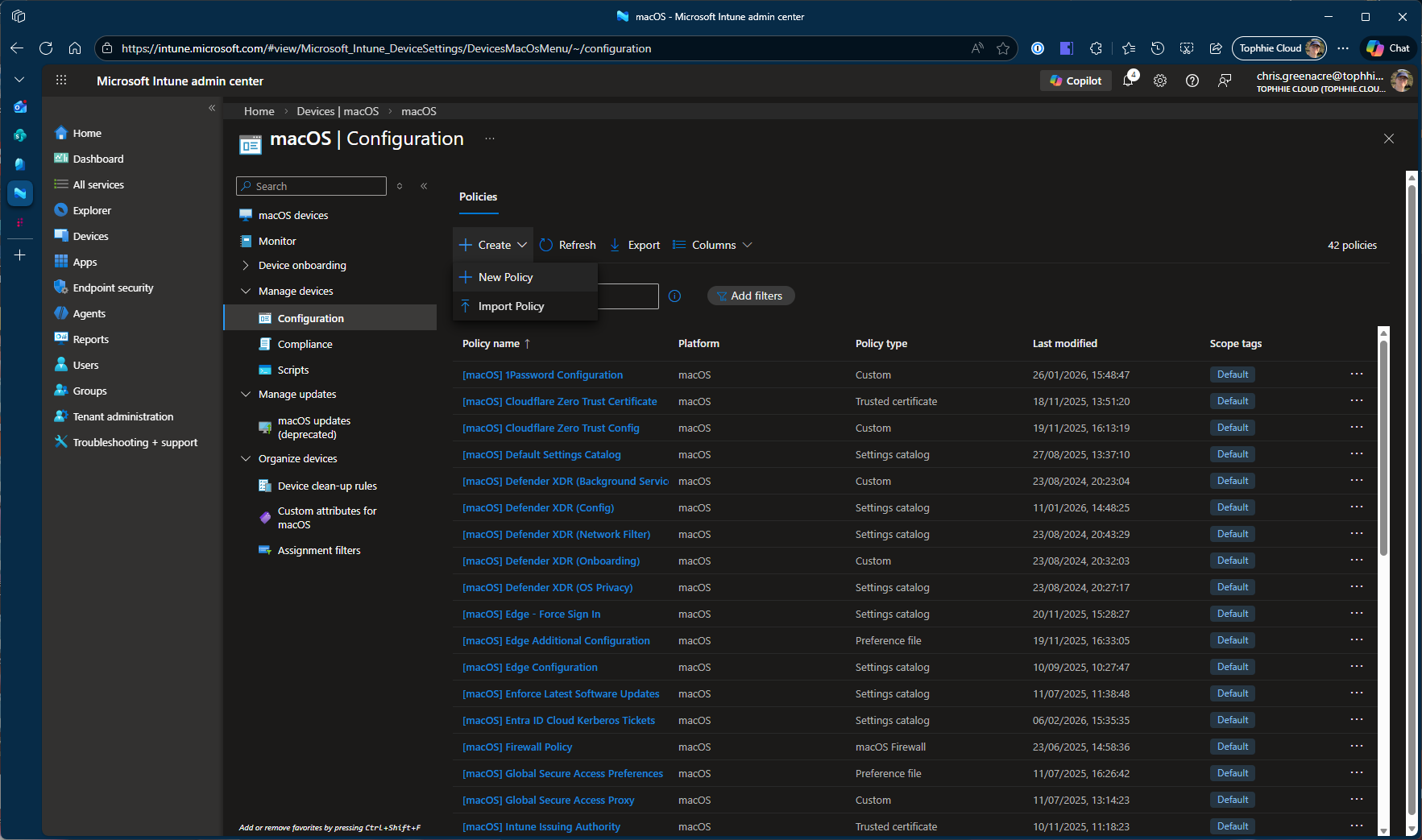
- Create a new "Settings Catalog" policy.
- Give it a meaningful name like "Entra ID Cloud Kerberos Tickets", or whatever floats your boat!
- Add the following settings from Authentication > Extensible Single Sign On Kerberos.
- Extension Identifier
- Hosts
- Realm
- Team Identifier
- Type
- Extension Data
- Allow Automatic Login
- Allow Platform SSO OAuth Fallback
- Perform Kerberos Only
- Preferred KDCs
- Sync Local Password
- Use Platform SSOTGT
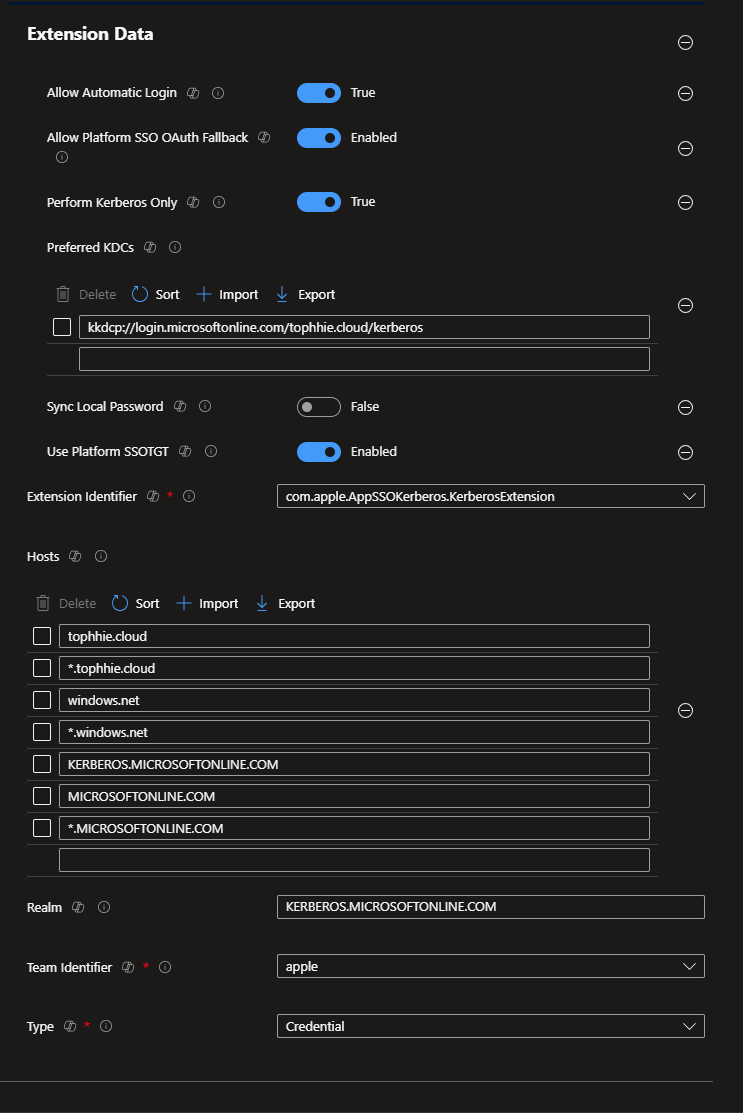
- Configure the settings as follows:
- Allow Automatic Login - True
- Allow Platform SSO Oauth Fallback - Enabled
- Perform Kerberos Only - True
- Preferred KDCs
- kkdcp://login.microsoftonline.com/YOUR TENANT ID/kerberos
- Sync Local Password - False
- Use Platform SSOTGT - Enabled
- Extension Identifier - com.apple.AppSSOKerberos.KerberosExtension
- Hosts
- Your primary domain
- *.Your primary domain
- windows.net
- *.windows.net
- kerberos.microsoftonline.com
- microsoftonline.com
- *.microsoftonline.com
- Realm - KERBEROS.MICROSOFTONLINE.COM
- Team Identifier - apple
- Type - Credential
Your policy should look a little something like this!
- Assign this policy to your users (not devices).
Once this has been applied to your users, and the policy has hit their devices, I've found a reboot is often necessary to get the Kerberos tickets queried and refreshed. But once that's done, you should find you can now access resources that require Kerberos tickets!
You'll know the policy has applied because a "key" will appear in the Menu Bar, and when you click on it, it'll tell you you're signed in!
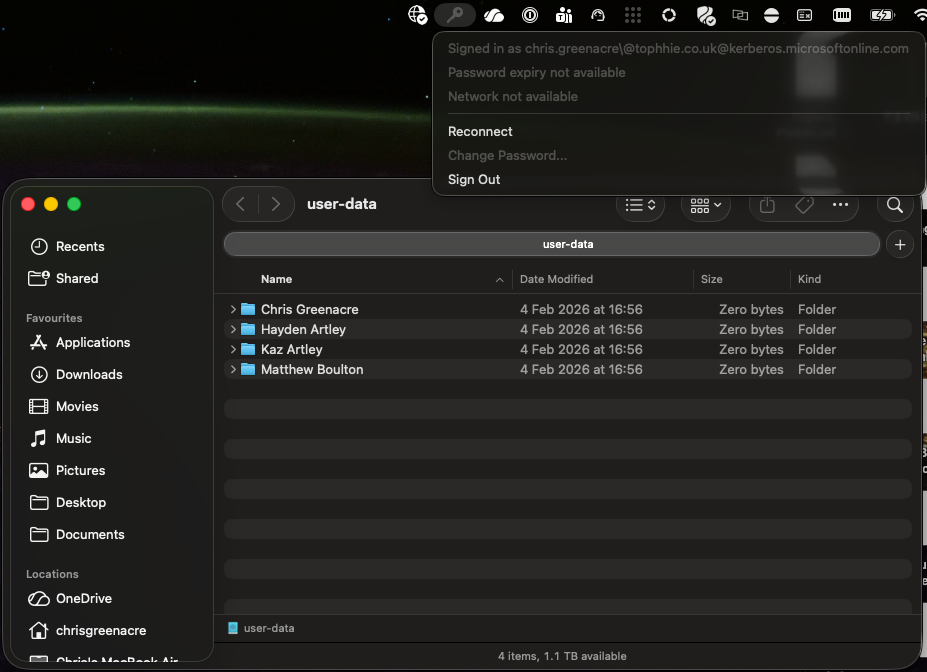
And that's it! You've configured Entra ID Cloud Kerberos for macOS!
Until next time 👋🏻


